Room for your illustrations. Clarity for your exports.
A focused update shaped by author feedback: cleaner illustration pages, a more faithful Print Proof, reachable bleed controls and clearer guidance for EPUB exports.
Choose a card to read what has improved.
Your words. Your book. Your next step.
Thirty-four thoughtful desktop details, a launch plan on your shelf, and a fix for disappearing chapter-one drop caps. More care while you write, more clarity while you prepare the finished book.
Choose a card to read what is new.
A clearer Alhora. A richer world.
A clearer place to write. A richer world to imagine. Meet the Alhora that brings it all together.
Explore the update. Select a card for the full story.
Your books, ready for their next chapter
Click any card to read the full story.
Every comment in one place, characters across a series, and chapters you can move
Click any card to read the full story.
A print file Amazon accepts, a contents page in its place, and a narrator on the chapter page
Click any card to read the full story.
22 themes, a soundtrack, and a World beside your book
Click any card to read the full story.
A second pair of hands, every draft kept, and the page up close
Click any card to read the full story.
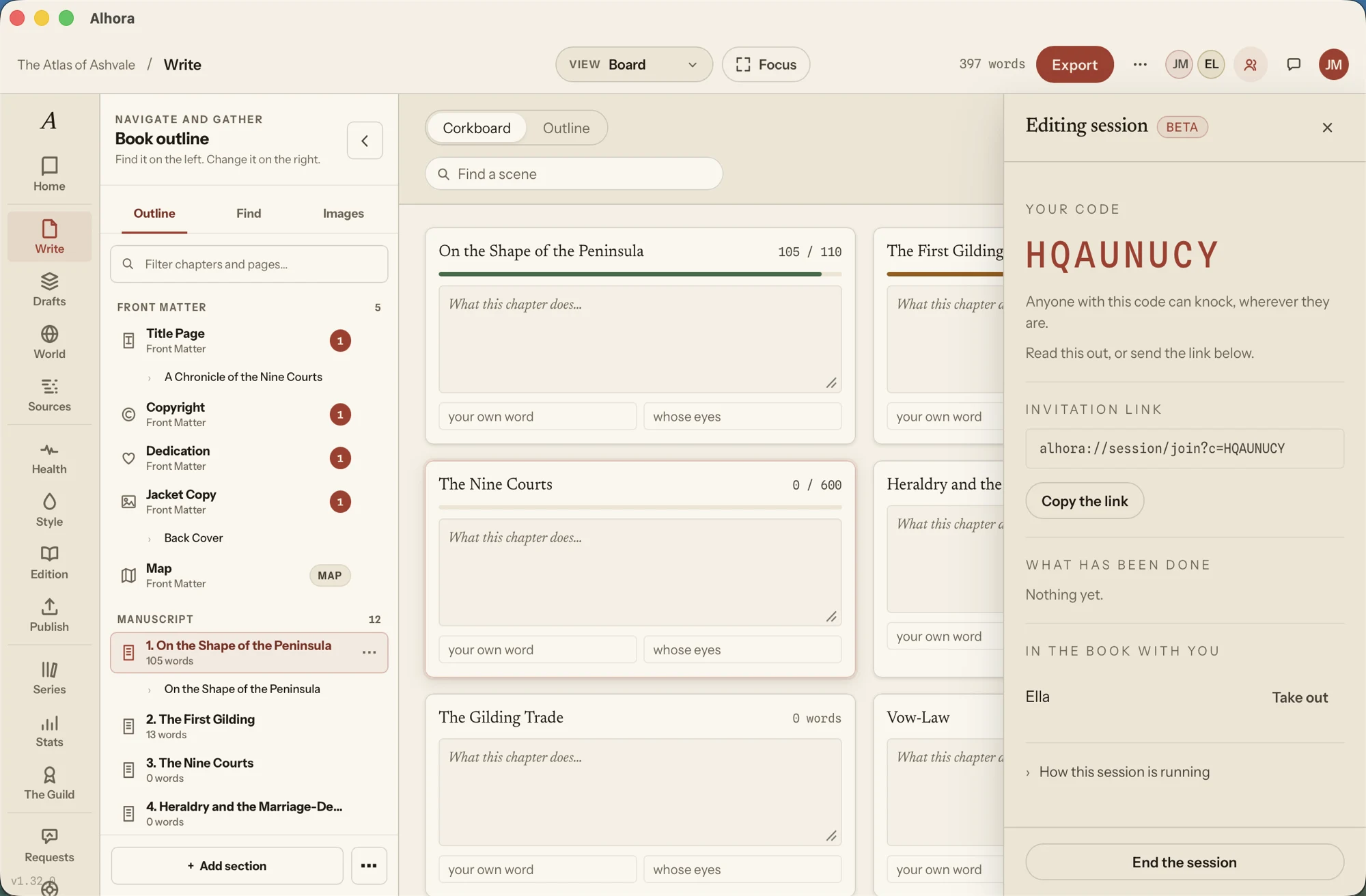 Invite a second pair of hands
A code, a link — and your book opens live in their Alhora.
Invite a second pair of hands
A code, a link — and your book opens live in their Alhora.
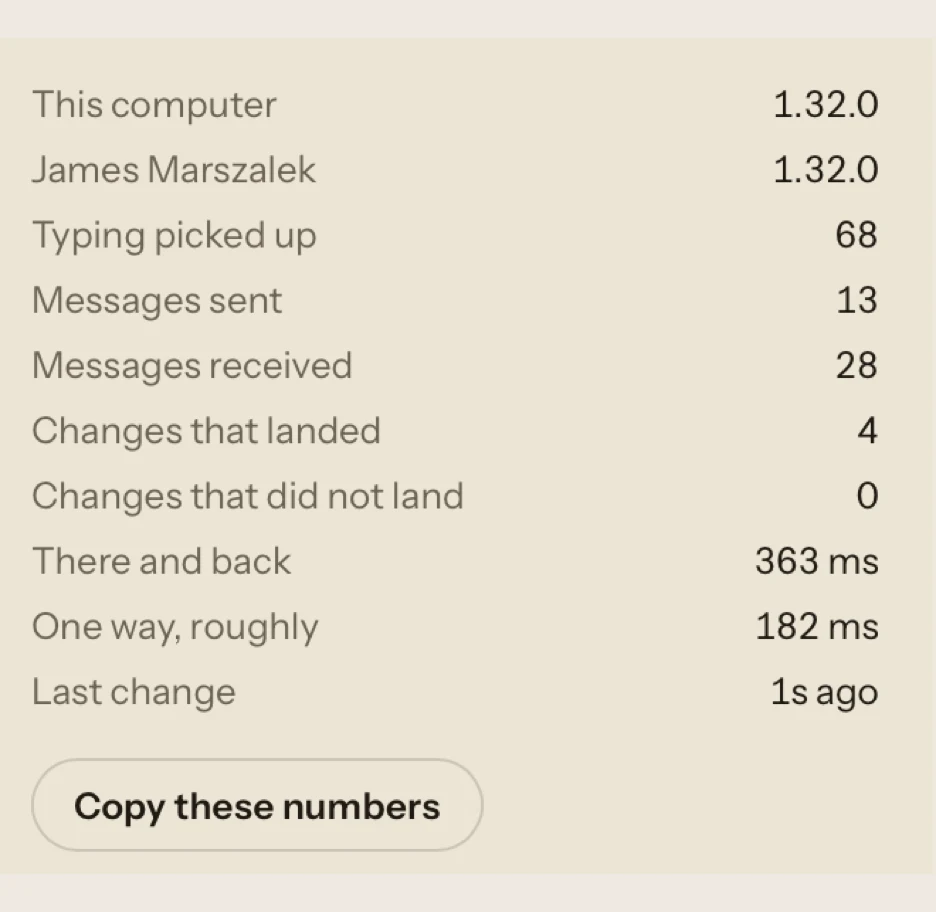 The session shows its workings
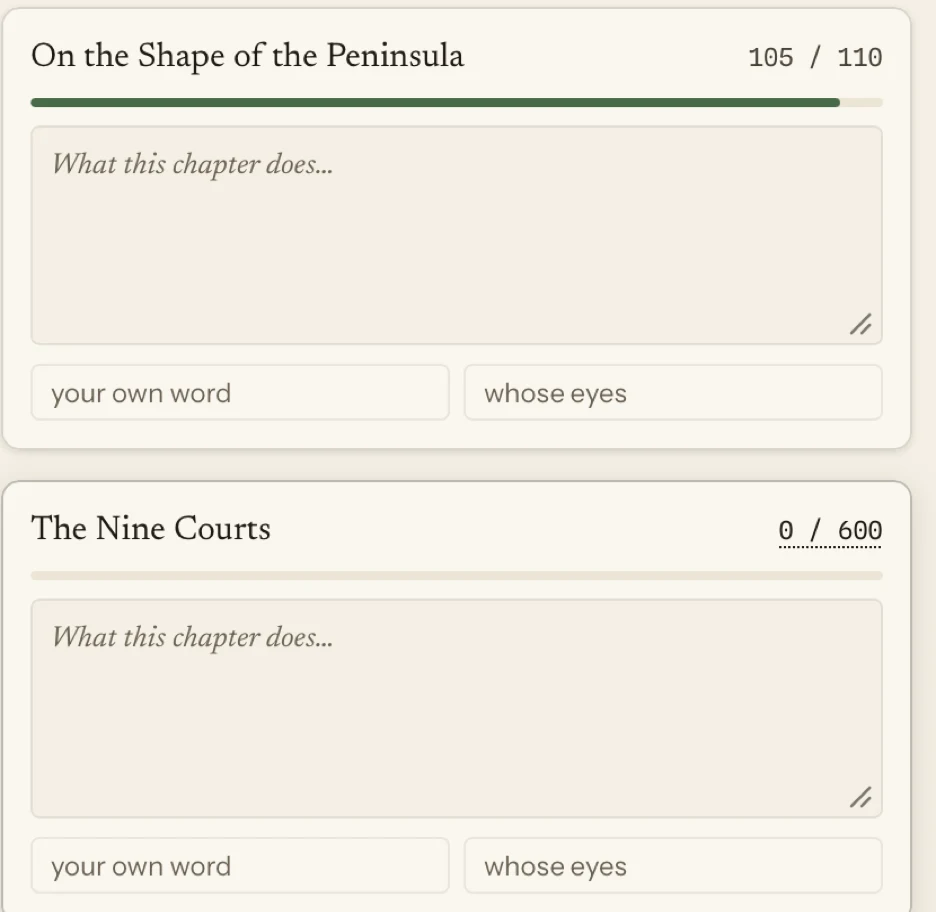 Every chapter can carry a target
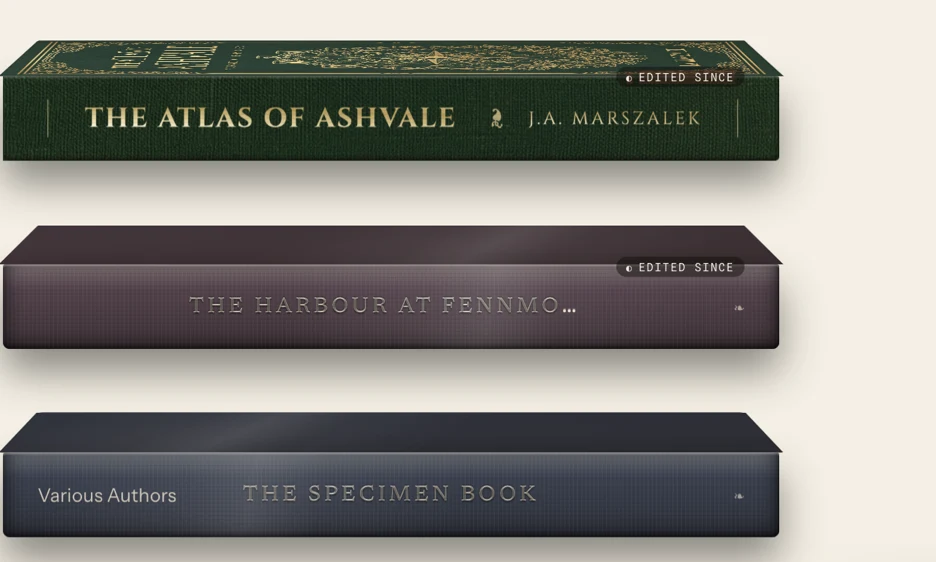 The shelf keeps your order
Your book is set the way a typesetter would set it
Click any card to read the full story.
Earlier releases 16 more
A redaction is a black bar, and the page is set the way the typeface intended
The printed book gets a long-overdue pass. A passage you redacted no longer goes into the PDF as readable text; bold and italic print properly in five of the built-in styles; letters are spaced the way the typeface intended; and the formatting you applied inside quotations, letters and recipes finally reaches the page. Your writing also survives a change of chapter. One thing to know before you order a cover: because letters now move, page counts can change.
- A passage you redacted no longer prints in full In the ebook, redacted words have always been replaced before the file is written. In the printed PDF they were not: the passage was blacked out on screen and went into the PDF as ordinary text, where it could be selected, copied, searched and read aloud by a screen reader. That is fixed, and fixed at the root — the hidden characters never enter the file at all, so there is nothing underneath to uncover. A redaction now prints as a solid black bar the width of the words it covers. If you have already sent a printed proof of a book containing a redaction, treat that file as carrying the passage, and send a fresh one.
- The words you have just typed survive a change of chapter While you type, your words live in the page in front of you, and Alhora writes them into the book a moment later. Clicking straight to another chapter took the page away before that handover, and the newest sentences went with it. Switching chapters now puts your writing into the book first, the way Save and quitting already did. The first words typed into an empty chapter are handled properly too — they used to sit outside any paragraph, so a size or a colour applied to them had nowhere to be stored and did not survive.
- Bold and italic print in Georgia Five of the built-in styles set your book in Georgia, and in every one of them a bold or an italic word printed as ordinary text — in paragraphs, quotations and letters alike, with nothing to tell you. Georgia describes its own weights in Spanish, and Alhora was reading those descriptions as English words. It now reads the settings inside the font instead, which say the same thing in every language.
- Letter pairs are set the way the typeface spaced them Good typefaces carry instructions about which letters should sit closer together — the A and the V in AVAILABLE, the T and the o in To. Alhora now follows them, so your printed pages are spaced as the type designer intended. Because letters move, lines break in slightly different places, and a long book can gain or lose a page. If you have a print order in flight, export again and check your page count before you order the cover — the spine width is calculated from it.
- Formatting inside quotations, letters and recipes reaches the page Twelve kinds of block — pull quotes, letters, diary entries, footnotes, recipes and the rest — threw away every bold, italic, underline and small capital you had applied inside them, and printed the words plain. They carry your formatting now. Poems set centred print centred rather than flush left, and an index term inside one of those blocks gets the page number it actually landed on.
- A German book says Zutaten, not Ingredients A recipe printed "Ingredients" and a letter printed "From" and "To" no matter what language the book was written in. Those words now follow the language you set for the book, in every language Alhora offers. Your own words are never touched — only the labels Alhora adds.
- A manuscript that still has an editor's changes in it is handed back A Word file with tracked changes still in it used to import with every one of those changes silently accepted, so an edit you had not agreed to became part of your book. Alhora now hands the file back and tells you to accept or reject them in Word first.
- Smaller things, in passing There is a sample book you can open from the empty desk — one leaf of every kind of block Alhora can set, so you can see how each behaves before you use it. The Stores panel now keeps a record of what you exported and can tell you when the file on sale has fallen behind your book, and which chapters a reader would notice. Two styles stopped promising a drop cap they never drew, and the font panel stopped naming a typeface it had not actually used.
Your writing stays put, and your book is proofed in its own language
A small release with two fixes, both about trusting Alhora with your words. The first closes a way that recently typed sentences could be lost when you moved between views. The second makes the language you set for your book the language your spelling is actually checked against, which on a Mac it never was.
- The words you have just typed are never left behind While you type, your words live in the page in front of you, and Alhora writes them into the book a moment later. A handful of moves could take that page away before the handover had happened — entering or leaving Focus, switching between prose and blocks, changing the preview, or clicking through to another room. The newest sentences went with it, and in the worst case an author came back to a page that had emptied itself. Every one of those moves now puts your writing into the book before it does anything else, and so do Save, switching projects and quitting. Nothing you have typed is left sitting somewhere that can be thrown away.
- Spelling is checked in your book's language, not your computer's If your book was in American English and your Mac was set to British English, every American spelling came up underlined — and changing the book's language made no difference, because your Mac was never reading it. It was reading its own settings, and it checked every book you opened against them. Alhora now tells your Mac which language the book is written in, so the red underlines come from your book's dictionary. Set it in Book Details and it applies the moment the book opens — the two Englishes told properly apart, and every other language Alhora offers. If you change the language while the book is open, each paragraph settles into the new dictionary as you next type in it.
The physical book, end to end — and the printed page put right
A release about the object itself. There is a new room called Edition, where you hold the finished book before a printer does, dress a collector's copy in foil and sprayed edges, and give a reader holding the paperback a way back to you. Pre-orders get a runway and a page readers can find, and the printed cover — back, spine and front as one file at the exact size a printer asks for — is now made inside Alhora rather than by hand. Reading rounds stop being identical and start being yours. And a long list of things that printed differently from the way you designed them now print the way you designed them.
- Edition: hold the book before a printer does There is a new room in the left rail called Edition. The Proof Room shows you the actual object — the real spine width from your page count, your cover wrapped around it, the edges of the paper — so you can turn it over before you commit to a print run. It is the last look you never used to get until a box arrived.
- Foil, sprayed edges, and a special edition worth the price Edition → Special edition is where you dress a collector's copy: foil on the spine, sprayed edges, and a sheet you can hand a printer. It refuses what cannot physically be done — foil on a spine too thin to stamp, spray on a block too thin to hold it — rather than letting you find out from the printer.
- A way back from a printed page to you Edition → Bridge puts a QR code into the book itself, so a reader holding the paperback can reach your mailing list, your next book, or wherever you send them. It goes in as an ordinary image in the back matter, so it typesets like anything else.
- Open pre-orders, and give readers somewhere to wait Publish → Runway sets out the run-up to a launch and builds a Coming Soon page you can put online before the book exists. The point is that the months before publication stop being dead time.
- Build your printed cover without leaving Alhora KDP and IngramSpark want the back cover, the spine and the front as one PDF at an exact size, and until now you assembled that yourself. Alhora now makes it, at your book's own size — the trim twice over, plus the spine it has measured from your page count, plus bleed on every edge. It is offered in both places you would look: beside the artwork you have just uploaded, and in Publish beside the files you are about to send. Anything the pre-flight check finds opens in Book Health rather than hiding inside a dialog.
- See the shape of a chapter while you write it A new Pulse view beside the editor draws the rhythm of what you have written — where chapters run long, where they run thin. It is a reading of the book you already have, not advice about the book you should write.
- The book says where it contradicts itself Book Health has a new Continuity card. It looks for the things a long manuscript quietly loses track of and tells you where to look, without touching a word of your prose.
- Sell every edition you actually make Your bookshop now sells ebook, paperback, hardback and special edition, each with its own price and its own postage — because a hardback in a box does not cost what a paperback in an envelope costs. You can switch the ebook off entirely and sell print only. Prices are set in pounds, dollars or euros, one per listing.
- Reading rounds on your terms You now decide how a round works when you create it, instead of every round being identical. A round carries its own tracking policy and your own words in the invitation — your confidentiality terms, what you want looked at, whether the book may be discussed elsewhere. Consent stays entirely the reader's: the policy decides which question they are asked, never the answer, and nothing is recorded without them saying yes. Readers can also say they have finished and leave one note about the book as a whole — a last-seen date could never tell you that, because somebody who stopped in chapter three and somebody who finished last night look identical in it.
- Proof a style in the edition it will actually print in Print and PDF take page numbers, running headers, fixed chapter backgrounds and flipbooks. Kindle and eBook are reflowable and take none of them. Style Studio showed you one proof and left you to work out which of the two you were looking at. It now names the edition and shows what that edition really does with the style — including the scene-break ornament, which differs between styles and had no surface that proved it.
- Your spine and sprayed edges actually appear Spine artwork and sprayed edges were not showing in the 3D viewer even when the files were right. They do now, the book opens turned to whichever face you have painted, and if artwork cannot be opened Alhora says so instead of quietly drawing a placeholder. The panel also explains what it never used to: artwork prints on the fore edge, and the top and bottom edges take the edge colour.
- Your book is drawn at its own size Every book in the 3D views was drawn as a nominal 6 x 9 whatever size you had actually set, so spine artwork cut to the measurement Alhora itself gave you did not fit the face it landed on. Books now draw at their real trim — on the shelf and in the detail view alike.
- A map appears on the page it will print on A full-page map exported correctly and then showed up on no preview at all: its page was reserved and left blank. It now paints on both preview tabs, bleeding past the trim the way a printed plate does. The blank page a spread forces onto the other side of the fold is inserted too, so every leaf after your map sits on the side it will in the finished book. And the flipbook ornament no longer prints a butterfly across the middle of the map.
- Text messages that look like messages on a Kindle A conversation block was drawing a hard box around itself on e-ink readers. That is gone, and you can now choose how a conversation sits on the page — soft, framed or no edge at all — and whether the bubbles are coloured or clear. On a Kindle set to black, the panel no longer prints as a white slab.
- The printed page now matches the preview Several things printed differently from what you designed. Captions rode up over the picture. Chapter headings landed about 15mm higher than you placed them, over your own artwork, with the subtitle too close beneath. The opening quote mark on an epigraph sat in the wrong place. Centred pages printed an eighth of an inch off, one way on a right-hand page and the other on a left. All fixed — and there is now a control for the gap between a chapter heading and its subtitle in print.
- A drop cap that fits a short opening A chapter that opens on a single line reserved the drop cap's full depth and left a hole above the second paragraph — in the editor, in both previews and in the printed book alike. There is now a control beside the line count that lets the cap fit the words that are actually there, and it is switched on in all six built-in styles. Built-in styles are refreshed when a book opens, so this reaches books you have already written.
- Your title page, copyright and dedication, set like a book These pages can now be placed down the leaf: in the upper third, or resting on the foot. So the publisher's imprint sits at the bottom of the title page where it belongs, and the copyright notice sits at the foot of its own. The copyright page also has its own type size, set for the whole page at once. New pages start where a trade book puts them; pages you have already written do not move.
- Find & Replace keeps the words you typed Find & Replace wrote the new words into your manuscript, but ten kinds of block went on showing the old ones — and the next edit you made in that block wrote the stale text back over the new. That is the half nobody reported, and it is the half that lost work. Fixed. Two more faults turned up while proving it: "Replace all" could quietly run against a suggestion your browser had filled in rather than the word you typed, and then report no matches; and the Image button in the block menu looked dead when it had in fact opened a picker just below the fold.
- Colours that were wrong on a dark background Nine colours across the app were named by tokens that did not exist, so a fallback written for light mode rendered on a near-black ground too. Fixed — and the design system gained the third verdict it was missing. "Wrong" and "worth knowing about" are not the same thing, and several places needed the second: artwork that will be cropped to fit still prints.
- The print facts travel with a report Nearly every cover or layout question turns out to be about the same handful of numbers. A diagnostic report you send now carries them — trim, spine, page count, which sections hold what — so the first reply is not a request for them.
- Every new control speaks all fifteen languages The reading-round policies, the printed wrap, the map editor and the ornament editions all arrive with their words already written in every language Alhora ships in, rather than reaching some authors in English and catching up later.
- A room introduces itself once Every room in Alhora introduces itself the first time you go there. If you dismissed that introduction rather than walking through it, Alhora treated it as still owed and offered it again the next time you visited — and the time after that. Dismissing it is an answer, and it is now taken as one. If you want a tour back, every room can replay its own from the menu in the top bar.
- A note for anyone mid-print-run Several of the corrections above change where things sit on the page — the print fixes, the drop cap fitting itself, the blank page a map spread now forces. So a book exported with this version may paginate slightly differently from one exported with 1.28.0. If your page count moves, your spine width moves with it — so re-check a cover you have already sent to a printer before you order again.
Find an editor, sell your book, and pick up where you left off
The largest release Alhora has had, by a distance. There are two new places to stand: the Guild, where you find the editor, designer, illustrator or narrator your book needs, and your own Bookshop, where you sell it. Every other room got deeper — your desk comes back exactly as you left it, your shelf tells you which book needs you, and a phrase you half-remember can be found across every book you have ever written. And a dozen smaller things here came straight off the requests board.
- The Guild: the people who make books, in the app Editors, designers, illustrators, narrators and translators now have an open directory inside Alhora, under Guild in the left rail. You can search it by craft, language, genre and price, and read what other authors said about someone before you write to them. Nobody pays to rank higher.
- A brief your open book writes for you Hiring someone starts with explaining the book, which is the part authors dread. Alhora writes the first draft of that brief from the book already open — length, genre, the state it is in, what you actually want done — and you edit it before it goes anywhere. You can copy it as text or attach it as a PDF.
- The Record: who worked on your book, and the credits page Every professional you work with through the Guild is kept in the Record, so a year later you still know who edited book two. From it, Alhora can build a credits page for the book itself. Nobody is printed into your book without you putting them there.
- Your own bookshop, run from Alhora You can now sell your ebook and your paperback direct to readers from your own shop page, and run the whole thing from Publish → Bookshop without going and finding files. You see your sales, and who bought what, in the app. Postage is charged to the reader, not taken out of what you earn.
- Come back to a desk, not a file Opening a book after three weeks away used to mean finding your place again. Alhora now restores the whole desk — the section you were in, where the cursor was, how far you had scrolled, which panels were open and how wide they were. It travels in the project folder, so copying the book to another machine brings your desk with it. There is a Start clean option per book if you would rather it did not.
- A shelf that tells you which book needs you The home shelf no longer shows nine identical covers. Each book says what state it is in and when you last touched it, so you can see which one is waiting on you without opening any of them.
- Search every book you have ever written “Where did I use that phrase?” now has an answer. Search from the home screen and Alhora looks across every book on your shelf at once, without opening any of them, and takes you to the paragraph. It stays on your machine.
- Drop a folder of chapters in, get a book out Leaving Scrivener, Word or a folder of loose files used to take several attempts. Now you can drop the whole folder on Alhora and it shows you the running order it worked out before it imports anything, so you can fix the order rather than discover it afterwards.
- A backup you never have to think about Alhora now keeps its own backups of your book without being asked, and Settings shows you what is in each one and what changed between them. If something goes wrong you lose a session at worst, not a book.
- Continuity mistakes, caught while you type If your world says a character has grey eyes and the sentence you just wrote says green, Alhora says so in the margin, quietly, as you write. It only ever uses what you already put in your world — it never invents a fact, and it never rewrites your sentence.
- The sentence you preferred three drafts ago Every paragraph now keeps its own history. Open it and drag back through earlier versions of that paragraph alone, and put one back if you liked it better. No more keeping a file of deleted lines just in case.
- Have your book read to you Alhora can read your manuscript aloud so you can proofread by ear, which catches what eyes skip over. You can pause it, and it keeps your place in the text.
- A room with nothing in it but the writing Deep Focus clears everything away — rails, panels, counts, chrome — and leaves the page. It is one keystroke in and one keystroke out, and it is off until you ask for it.
- Plan the book on cards, over the book itself There is now a planning board in the editor: your sections as cards you can read, reorder and label, or the same thing as an outline. It is not a second document that drifts out of date — the cards are the book, so moving a card moves the chapter. The columns come from words you typed rather than four stages we invented.
- Moodboards that are part of your world You can now build reference boards inside Alhora instead of in a browser tab: drop pictures on a canvas, frame them, arrange them, and pin one to a character or a place so the character knows about it. Each entry in your world can carry its own board, and the board travels with it.
- Colours pulled off a photograph, used in the book Take the palette out of a reference image and it becomes something you can actually use — the ink on your map, the colour of a chapter ornament — without a hex code being typed once.
- The plot, as a shape you can see You can now draw connections between the things on a board and the scenes in the book, which makes the shape of the plot visible. A thread you planted and never paid off is something Alhora can point at.
- Catch the idea before it goes The thought that arrives mid-sentence now has somewhere to land. One shortcut, from anywhere in the app, opens a note you can throw at the wall and sort out later.
- Could she really get there by Thursday? If you have drawn a map and set a scale, Alhora can work out how long a journey between two places takes on foot, on horseback or by whatever means you have defined, and check it against your timeline.
- The family tree draws itself The genealogy chart readers love now costs nothing beyond the relations you already entered. Alhora draws it from your world, and it redraws when you change something.
- What breaks if I change this Before you rename a city in book four, Alhora shows you everywhere that name appears — chapters, world entries, maps, notes — so renaming is a decision you make with the list in front of you rather than an archaeology project afterwards.
- Your world, as a second book The world-building nobody pays you for can now be turned into a companion volume — a real book, laid out and exported like any other, from entries you already wrote.
- An index that writes itself, and you approve it For non-fiction, Alhora now proposes the index: it reads the book, suggests the entries and the pages they belong to, and you accept, reject or edit each one. Nothing goes in without you saying yes.
- Build a bibliography by dropping things in Paste a DOI, an ISBN or a link, or drop in a PDF, and Alhora fills in the source for you instead of you retyping it off a title page. What it cannot work out it leaves blank and tells you, rather than guessing.
- The quotation that gets authors sued Song lyrics, poetry and long quotations need permission, and authors find that out late. Alhora now keeps a permissions list per book — what needs clearing, who you asked, what they said — so it is settled before the print run, not after.
- Prove where every claim came from You can now attach a source to a specific sentence and follow the trail back later. If an editor, a fact-checker or a reader asks where an assertion came from, the answer is one click, not an afternoon.
- Fix forty things at once Book Health used to hand you a list and leave the work to you. Now you can fix a whole category in one go — and Alhora shows you exactly what it is about to change before it changes it, and one Undo puts all of it back.
- Find the print mistake before the proof copy Book Health now simulates the print run page by page and shows you the pages at risk, with a thumbnail and a jump straight to them: artwork that stops short of the bleed, text drifting into the margin or the gutter, pictures too low-resolution to print, ink laid on too heavily, rules so fine they will disappear, and stranded first and last lines. A clean book is told so in words, with the list of what was checked — and if a check could not run, it says which and why rather than counting silence as a pass.
- The accessibility form, in its own words Selling into the EU means filling in a conformance statement that asks about success criteria, not about Alhora's rule names. Book Health now reports its findings in the standard's own terms, so you can answer the form from what is on screen. It lists the criteria you passed as well as the ones you did not, and — just as plainly — the ones Alhora does not examine at all, because a page of green ticks would read as a guarantee we are not in a position to give.
- Make it look like that book Point Alhora at a book whose interior you admire and it measures it — type size, leading, margins, proportions — and offers you those measurements as a starting point for your own. A measurement, not a hiring decision.
- Every design choice with its price attached Type size, leading and margins all change your page count, and your page count changes what the printer charges. Style Studio now shows the page count and the cost moving as you move the slider, so you find out before you commit rather than at checkout.
- Why is this chapter different? When one chapter does not look like the rest, the new panel in the sidebar lists every styling decision in force on it, where each one came from — the book, the style, or that chapter deciding for itself — and gives you one button to put a chapter-level decision back.
- Style packs A complete interior design — fonts, ornaments, spacing, chapter openers — can now be packaged as a single file, shared, and brought into a book in one step.
- When you actually write well Writing stats now show you your own conditions rather than a target: the hours, the session lengths and the days that your own record says work for you. It is information about you, not a verdict on you.
- Telling us what went wrong, safely Reporting a problem now takes one click, and Alhora shows you exactly what it is about to send before it sends it. There is also an optional trail of what you just did, off until you switch it on, which turns “it just stopped working” into something we can reproduce.
- A chapter that does not want indents A chapter written as a letter, a diary or a list can now sit flush left while every other chapter keeps its first-line indents. Select the chapter in the Contents pane and untick Indent the first line of each paragraph. Front and back matter can do it too.
- An ornament for the ebook, artwork for the print Your chapter ornament can now belong to one edition and not the other. In Style Studio, under the ornament you chose, Show it in has a box for the printed book and a box for the ebook. Untick the printed book and your print keeps its full-page chapter art with no ornament, while the ebook still gets one.
- Click an image page to fill it An image page used to arrive as a grey placeholder with no way in — the only route was dragging an asset onto it, which quietly added a second block. Now the placeholder is the button: click it, and choose a picture you have already brought in or import a new one.
- Pictures in your world pages, without the syntax World articles have understood pictures and tables for a while, but only if you knew how to type them. There is now a Put in a picture button above the article: it brings the image into your world and writes it in where your cursor was. The hint beside it tells you that rows of pipe-separated cells make a table.
- Grandparents, and connections in your own words Connections between world entries now include grandparent of and grandchild of. And when none of the kinds we ship fits, choose something else and write the connection yourself — mentor of, rival of, old friend of. Your wording shows on both pages and in the graph.
- What your readers wrote, beside the paragraph Reading Room readers could leave a note on any paragraph, and you could only see that a note existed. Now the count in your margin opens: click it to read what each reader said, with their name and the day they said it.
- Spine and sprayed-edge sizes, stated Book details now tells you exactly how big your spine and sprayed-edge artwork should be, worked out from your page count, paper and trim — and for a hardback it counts the boards, which it did not before. The 3D book draws sprayed artwork on the fore edge it was cut for, and the head and tail take your spray colour instead of a wildly magnified sliver of the picture.
- Alhora now says when a picture is the wrong shape The warning that tells you a cover will be cropped or boxed has been silent since it shipped, because nothing was measuring the pictures you imported. It measures them now. The ebook cover slot also says plainly where that cover appears — the EPUB and the ebook previews — and where it does not.
- What starts a new chapter, everywhere The import setting that decides whether your Heading 1s become chapters was being ignored in two places: the Quick Start wizard, and every .odt import. Both honour it now, so choosing Never really does bring your manuscript in as one chapter with its headings left as headings.
- Number the Contents pages The Contents panel has a new toggle. Turned off, the contents page prints no folio of its own, and the roman numerals begin on your first front-matter page instead.
- American and British English, by name Typing American English or British English into a book's language now sets the right one, so your spell-check stops arguing about colour and color. Plain English still means neither, on purpose.
- Everything centred is now actually centred A printed page is not symmetrical — the margin at the spine differs from the one at the outer edge, and the bleed the printer trims off sits on one side of the paper and swaps hands every time you turn a leaf. Alhora had been centring chapter titles, page numbers, running heads, captions and epigraphs on the sheet of paper rather than on the column of text, so on any book with a gutter they sat up to an eighth of an inch off centre — one way on a right-hand page and the other way on a left. They are now centred on the text, which is where you have always seen them on screen. A book with equal margins and no bleed exports exactly the file it did before.
- Chapter art that sits where you put it Chapter art is now centred on the finished page rather than on the untrimmed sheet, so it stops drifting between left- and right-hand pages. And for the chapter where the automatic placement is almost right, you can now nudge the art across, nudge it down and resize it, per chapter, with one button to put it back. The measurements are percentages of the finished page, so a nudge means the same thing if you change trim size later.
- Long titles wrap instead of walking off the page A front- or back-matter title too wide for the page used to jump to the left margin and then run off the edge — worse the larger you set the type. Titles now wrap onto a second line and stay centred. Small capitals are drawn properly too: the capitals you typed stay full size over the small ones, instead of the whole title shrinking. And a heading is drawn at the weight your style asks for rather than always bold.
- Drag to a page Both print previews now have a slider under the page. A three-hundred-page book no longer means clicking Next until you reach chapter twenty.
- The world you built, as a document you can hand over An editor, a narrator or a co-writer always asks for the same thing, and it has never been a thing you had. Open a book, go to World, and under More there is now Series bible — or open a series from the left rail and use Series bible on The world of this series card. Every line of it comes from something you already made: your entries, your own answers, your systems. Nothing in it is written for you. Write it out saves it as Markdown, because it is a document for a person to read rather than a page of your book, and it is never typeset.
- A rebuild you can read before it runs A bible built last month goes out of date as the world grows, so you can rebuild it whenever you like. Before you do, the page shows what a rebuild would do — which sections would be added, which rewritten and which would go — naming each one by its own heading rather than counting them. If the document is short it tells you so, and tells you that nothing has been padded out to make it longer.
- The sections you wrote yourself are never touched Not everything an editor needs is in your world, so you can add a section of your own — a heading and whatever you want to say — and edit it in place afterwards. Each section is marked as yours or as coming from the world, and a rebuild leaves yours exactly as they are. If a rebuild ever looked as though it would alter one of them, it stops before changing anything and says so.
- The rules of your magic, or your technology World → More → Systems is a place to write your systems down: what each one is called, and under it the rules — what a rule says in your own words, and, where it makes sense, a number it can be measured against. A rule with no number is marked as one that cannot be checked, along with what it would need to become checkable. Nothing here reads your prose. No scene is checked against a rule, and there is nowhere in the app to say that a scene used a system, so a rule with a number in it is a note to yourself as much as anything else. Until you write a system down, nothing anywhere else in Alhora mentions systems at all.
- A style you changed stays changed Editing one of the styles Alhora ships with used to look as though it had worked, and then it was gone the next time the book opened. Now the first change you make to a shipped style puts your version beside it: the original stays in your list, the book moves on to your copy, and Alhora tells you that is what happened. It holds wherever the change comes from — the Style tab in the Inspector, Style Studio, or asking Inkia to set a scene break or an opener. A book saved by an earlier version has the changes it was about to lose lifted into a style of their own when you next open it.
- Revision counts as work A fortnight spent cutting used to look like a fortnight of nothing. The four weeks, day by day chart in Writing now carries a line beneath it saying how many words you touched, across how many days, and how that divided between written and cut. A day with time at the desk but no change in the count is drawn as a day you worked rather than a blank one, and the fourth tile at the top of the page now reads most words touched instead of rewarding whichever day added the most.
- A finishing range, not a finishing date One date was always a guess wearing the clothes of a fact. Type your finished length into the Pace card and the reading is a range — at your own recent pace you finish between one date and another. It takes eight days of writing in the last thirty before Alhora will give you one, the card says so above the reading rather than after you have asked, and below that threshold it tells you how many writing days you actually have.
- Work back from a date you have been given If the date is already fixed, fill in Finish by and Alhora tells you what it costs — roughly so many words on each of the days you would really write between now and then, rather than a figure spread thinly across every day on the calendar including the ones you never write on. If that number is higher than any day in your own recent record, it says so.
- Everything you have written since Alhora started counting Past the challenges in Writing there is a card holding your whole record: words written, cut and touched, days of writing, sessions, and minutes at the desk, back to the day the counting began. It is plain about its own edges — these are the days this copy of Alhora watched, so books you wrote before it or on another machine are not in them, and a project you no longer have is counted without its name.
- A year of your writing, set in your own book The same card can set a year of your work as a page of a book — your style, your typeface, laid out by the same typesetter that lays out your chapters. Buttons for each year appear once your record covers more than one. Nothing about it leaves your machine.
- Goals that live in the book A goal is a name, two dates and a word count, added under Goals for this book in Writing. It is kept in the book rather than beside it, so it travels wherever the book travels. When the pace so far means the word count and the date no longer meet, the goal says so once and offers three things: a date that does match the pace so far, what keeping your own date would cost per day from here, or leaving it exactly as it is.
- Take your library with you Your sources can now leave Alhora in the formats reference managers, LaTeX and Pandoc all read. Open Sources in the left rail and the card at the top writes your library out as BibTeX or as CSL-JSON. Only what you actually recorded is written — no gap is filled in with a plausible value — and the entries come out in the order you keep them, so exporting an unchanged library twice gives you the same file both times.
- Notes at the foot of the page, or at the back Sources → Citations has a card called Where your notes sit, which moves every note in the book down to the back, or brings them all up on to the page. It does not touch your citation style, which is chosen above it. Any note it will not move is listed by name with the reason — a note that says more than its citation would lose your words if it were folded into the line, so it is left exactly as it was — and a run with nothing to move tells you that rather than looking as though it failed.
- The file you kept with a source A source with a file kept beside it now has an Open the file button, both in your library and beside a citation in the text. Where your note names a page, the page is stated rather than jumped to: Alhora opens the file itself, it cannot open your reader at a particular page, and it says so instead of pretending otherwise.
- Chapter numbers across a box set The chapters in a box set can count straight through the whole volume or start again in each book, chosen on the Box set card under Series. Whichever you choose is the number printed on every chapter opener and the number the contents lists. Alhora lays a box set out for the ebook and not for print, so it cannot tell you the combined page count a printer's maximum is measured against — and it says that on the card, where you are standing, rather than at the export.
- The also by page that names a book in the same set A book collected into a box set usually carries an also by page listing your other books, and inside one volume that page sends readers to something they are already holding. The Box set card now lists every such page, names the book in the set it points at, and gives you a Take it out button. Back-matter pages that name no book in the set are left alone.
- A Book Health score that says when it went out of date The Typography and Accessibility scores at the top of Book Health had no way of telling you they were filed before your last three chapters. They do now, by the same measure the Sources & Index and Retailer checks cards use — marked as changed since it ran, with the number of words you have written since. A run records the state of the book as it stood at the time, so the mark means what it says rather than depending on where the book has got to since.
- An export check that admits its age A pre-flight result taken into Book Health from Publish used to sit there looking current no matter how much you wrote afterwards. Run an export with pre-flight, keep writing, and Book Health now says the result belongs to an earlier state of the book.
- Recipes: a run you make often, kept as a file If you ask Inkia for the same sequence every week, you can keep it. Under Your recipes, save what she just did as a recipe file, open it again another day, or hand it to a co-author. A recipe is a list of steps and never a copy of your conversation, and a file carrying a secret, a path that names somebody's machine, or a step this version of Alhora cannot do is refused by name — you are told which step and what was wrong with it, rather than watching it stop halfway.
- Which of Inkia's skills work without an AI package Inkia's left column now says how many of her skills need no AI package at all, and names the ones that are off without one, and why each is off: it reads evidence with a model, and with no package there is none, so it stays off rather than answer from less. The panel is plain about where the work happens: with no AI package there is no model anywhere, and every step is planned on your own machine.
- A file somebody sent you, read before it is opened Style packs and printers' threshold packs come from other people, so both are now looked over before Alhora reads what is inside. You are shown who shared it, what is in it, the fonts it wants and the terms it comes under — and a file you chose off your own disk says so, because nobody shared it with you. A file that reaches off your machine, points at a place on somebody else's disk, or carries instructions for the computer is refused, with the whole offending line quoted rather than the fragment that tripped the check. Handing the wrong kind of pack to the wrong place is named as such, and you are told where the right place is.
- The requests board with no connection Losing the connection used to empty the Requests board. The cards you last loaded now stay on screen, marked as the board you last loaded and when — earlier today, or a number of days that is measured rather than guessed. Load more is withdrawn while you are reading a stored board, because there is no next page without a connection. And if you change the lane or type a search, the stored board steps aside rather than answering a question nobody asked it.
- Already on the board, and worded similarly Type a title into Post a request and Alhora shows you what is already on the board worded like it, before you have finished writing. Post yours anyway if it is a different ask; if one of them is what you wanted, voting for it counts for more than a second request saying the same thing.
- Smaller things, put right A large-print book previews its large-print ISBN rather than the paperback one. On the website, profile pictures say what they need — JPEG, PNG or WebP up to 5 MB, square and at least 400 pixels — and book descriptions, guild listings and our own replies on the requests board keep the paragraphs they were written with.
Cite it, read it aloud, and find out where they stopped
The largest release Alhora has had. Non-fiction gets real sources, a bibliography and an index that knows what page everything landed on. Every book gets an audiobook route — record it here with your own words on screen, or bring in files you recorded elsewhere, and Alhora masters them to what Audible actually asks for. And beta reads stop being an email thread: send your book to a handful of readers and find out which chapters they reached, where they stopped, and what they went back to, marked beside the paragraphs in your editor.
- Sources, a bibliography, and a real index Keep your sources in the book, cite them where they belong, and Alhora builds the bibliography and the index for you. Chicago, APA and MLA are all there, and you can bring your sources in from Zotero, Mendeley or anywhere else that exports BibTeX, RIS or CSL-JSON. The index is the real thing: it knows the page each entry actually landed on, because it is built after the book has been laid out rather than guessed at beforehand.
- Cite a source without leaving the sentence Select a few words in either way of writing and there is a Cite button and a Mark for index button in the toolbar. The citation goes in as a footnote or an author-date reference depending on the style you chose, and the index mark is invisible in the finished book but shows up in the index with the right page number.
- An audiobook that will actually be accepted Publish → Narration takes one recording per chapter and measures it against what Audible asks of an audiobook: how loud it is, how quiet your room is, the silence at each end. It says plainly which faults it can put right and which ones mean recording again — a room that is too noisy cannot be fixed by turning anything up, and Alhora tells you that before you waste an afternoon on it. Then it writes the 192 kbps file a shop will take.
- Record it here, with your own words on screen If you have nowhere else to record, you can now read your book aloud straight into Alhora. Your prose scrolls on screen at a pace you set, there is a level meter that tells you if you are too quiet or too close, and a Redo the last bit button that throws away everything since you last paused and puts the page back to where that started. If you already record somewhere you like, nothing has changed — import the files as before.
- Beta reads that tell you where people stopped Publish → Reading Room sends your book to a handful of readers as a private web link — nothing for them to download or install. You find out which chapters they reached, where they stopped, which passages they went back to, and their answers to questions you pin at particular moments. It comes back into your editor as marks beside the paragraphs they are about. Every reader is told exactly what is measured before they see a word, and anyone who would rather just read still gets the whole book and can still leave notes.
- Chapter subheadings A chapter can carry a line beneath its title now — a date, a place, a point of view — set in the sidebar beside the chapter it belongs to, and typeset by the same rules as the title above it.
- Heading fonts, level by level Your three heading levels can now use different faces rather than three sizes of one. A style that leaves a level unset carries on using the book’s heading face, so nothing you have already built has changed.
- The book on your shelf is the book you would print The 3D book on the home screen is now built from the same measurements the exporter uses — your trim size, and for a hardback the square and the board thickness. A perfect binding is drawn trimmed flush, because that is what it is. It was an approximation before.
Your words stay put
A fix for the one thing a writing app must never do. Text typed into a chapter could disappear if you moved to another chapter before clicking away from the page — the words were on screen but had not yet reached the file, and the next chapter drew over them. Every chapter now saves what is on screen the moment you leave it, however you leave it.
- Try a real export before you pay for one Quick Export now has a free sample that needs no plan. It holds all of your front matter, the first eight pages of your book, all of your back matter, and a small "Made with Alhora.app" mark in the outside margin. Front and back matter are whole on purpose — a title page, a copyright page and a dedication are exactly what you want to check before paying, and they render precisely as the paid export renders them.
- Leaving a chapter is now what saves it Until this release a chapter wrote its text to the file when you clicked away from the page. Most ways of moving do that — but not all of them. The chapter shortcuts (⌘⇧[ and ⌘⇧]), Inkia opening a section for you, a jump from Book Health: none of those touch the page, so nothing was saved and the newest sentences went with the switch. Saving no longer depends on how you left.
- In both ways of writing Write mode and Blocks mode both had it, and Blocks had it worse: a block waited a fraction of a second before saving, and if it left the screen inside that moment the save was abandoned. A fast click on another chapter was enough. Both now commit on the way out, and so does leaving the editor altogether.
- Chapter names, too Renaming a chapter by typing over its heading and then moving on lost the new name the same way. It is kept now, alongside the prose.
- Careful about everything else The fix writes only what you actually typed, never touches a block you left alone, cannot bring back a block you deleted, and does not fight the undo button — ⌘Z still returns the text you asked for rather than having the screen written back over it.
Proof of Authorship
Your book can now prove it was written by hand. Every book keeps a private Writing Ledger — a tamper-evident diary of sessions, revisions and the exact scope of every AI check — and can turn it into a signed certificate anyone can verify at alhora.app/verify. Czech becomes the fifteenth language, Alhora starts sending the email it always should have, and the site gains free calculators, guides and a published affiliate rate.
- A diary the book keeps for itself While you write, the book records when you wrote, how much changed, large pastes, imports and every AI check — never your words, which the diary cannot even hold. It stays on your machine, chained so any tampering is visible, and each book can pause it any time in Publish → Proof of Authorship.
- A certificate anyone can check When the book is ready, generate a certificate. Alhora shows you a plain-English summary of exactly what would leave your machine — counts and dates, never a word of your book — with the precise data one tap away, and sends it only when you approve. The signed summary gets a public page at alhora.app/verify.
- Put the proof on the book itself New exports can carry a small colophon line and a scannable QR code on the copyright page, and the certificate's QR can be saved as a print-quality image for a back cover, a bookmark or a website. Alhora also offers all this at the moment you export, so the choice arrives when it matters rather than waiting to be found.
- Amazon's AI questions, answered from evidence KDP asks every author about AI use. Alhora now drafts those answers straight from the book's own ledger — evidence instead of memory. Authors are losing deals to AI accusations they cannot answer; the ledger attests your process, written by hand over real time with AI limited to checks that never compose a word. It claims exactly that and never more.
- Czech, the fifteenth language Czech joins both lists — the language Alhora speaks to you in, and the language a book is written in, which stay independent. Front matter, section names and book structure are typeset in Czech rather than English headings over Czech prose, and Czech's four plural forms are handled properly throughout.
- Alhora sends its email Password reset now actually reaches you — until now the production server could not send mail at all, so anyone who forgot a password had no way back into their account. Fifteen designed templates cover resets, receipts, invitations and product news. You can join the product-news list from the Account panel, and nothing marketing is ever sent without you ticking that box first.
- Free tools and guides on the website A spine-width calculator, a word-count-to-pages estimator, a KDP formatting guide and honest tool comparisons are now free to use at alhora.app, whether or not you own Alhora. Every product claim on the site is counted from the app's own source rather than restated, so the numbers cannot drift.
- The affiliate programme names its rates £18 for an annual plan, £28 for a lifetime, 10% off for the reader you send, paid monthly above £50 — published on the page and rendered from the same constants that calculate the money. Signups through Google now credit the affiliate who introduced them, which they previously did not.
The World Beside the Book
Version 1.25.0 gives every book or series a complete place for its people, places, history and maps. Build a linked wiki, see relationships, invent a calendar, work with maps, check continuity and turn the world into book pages. Styling, previewing, publishing and saving are clearer and safer too.
- A complete home for your world Start a world from one book or share it across a series. Make pages for people, places, factions, things, events, lore and your own types. Add images, aliases, tags, summaries and full articles, arrange pages inside other pages, pin favourites and search everything. A series can also show the world only up to a chosen book, keeping later spoilers out of sight.
- Your manuscript knows who it mentions Type @ while writing to link words to World pages. Every page shows its manuscript appearances and can jump to the exact passage. The links stay private inside Alhora and never appear in PDF or EPUB. Renaming keeps the link, and deleting a page removes only the link, never the words you wrote.
- See how everything connects Add named relationships and explore them in an interactive graph or family tree. Filter, zoom, move and save the layout, then export SVG or print-quality PNG. Canvas boards give you a looser planning space where wiki cards and free notes can be moved and joined with labelled connections.
- A timeline in your world's own time Invent months, weekdays, leap rules, moons and eras. Add dated events with durations, notes, linked pages and lanes, then switch between Timeline, Calendar and List. Search and filters keep a long history usable, while clear warnings catch impossible dates such as an event before a person was born.
- Maps that do more Import maps, place wiki-linked pins, open maps inside other maps, add layers and overlays, draw named regions and routes, calibrate scale, and measure distance, area and perimeter. A drawing canvas adds coasts, rivers, labels and stamps. Maps can then flow through an eBook or take a full plate in the printed book.
- Check it, print it, take it with you World Coverage compares recurring manuscript terms with World pages on this device. World Audit finds clear continuity issues, broken relationships and orphan map pins without AI. Add editable Dramatis Personae, Gazetteer, Glossary and Chronology pages to the book, with a before-and-after check before a refresh replaces anything. Export or import a self-contained folder of Markdown, images and complete World data whenever you want to take it elsewhere.
- Print and eBook can finally look different Give Kindle and eBook their own fonts, sizes, line spacing, paragraph spacing and indentation while leaving Print and PDF alone. Style Studio now has separate live print and reflowable previews. Chapter titles and numbers can use different fonts, opener spacing and body-only chapter drops are adjustable, and running heads sit beside the preview they affect. Header on own page now visibly moves the opening text to the next page in Book, Style Studio and eBook previews.
- A moving picture along the page edges Choose from 25 print-only fore-edge animations, put them on the left, right or both page edges, and hide them from chapter openers or front and back matter. Each preview shows the same sequence that will be printed across the leaves. They reach the print PDF and stay out of EPUB, where physical page edges do not exist.
- Inkia is useful without an AI plan Everyone gets Inkia's private, on-device guide and safe operator, including offline. It answers detailed how-to questions, opens the right controls, can make a small set of confirmed style or section changes, runs World Audit, and prepares an editable feature request when Alhora does not support something. Cloud-written help still requires an AI package and the cloud switch.
- Calmer, clearer everyday work Home shows one useful next step. Grouped navigation and a clear View menu make Write, Preview, Focus, Style, World and Publish easier to find, while the animated two-click 3D bookshelf remains. Series uses a clearer accessible list. Publish leads with Kindle EPUB, EPUB and Print PDF, moves advanced choices out of the way, reports the exact size of every export and explains which project files are large. Store publishing follows Build, Fix, Upload. Book Health separates three quick local checks from the optional AI read. Empty, loading, retry and locked states now tell you what to do, and the suggestions board can be properly replied to and marked as planned or shipped.
- Safer work and more accurate previews Books and worlds finish saving before switching, closing, restoring, reimporting, renaming or deleting. A failed save keeps the app open and the work retryable, and an older load can no longer replace the project you just opened. Pages proof now uses the same measured pagination as Book view, including chapter furniture and top-outside page numbers. Custom message-bubble colours keep readable text, and transparent PNGs, ornaments and maps no longer turn white on coloured pages. Shortcuts open the Publish or Health page they promise, and top-bar word counts now include every volume in a box set.
The Exceptions
A book-wide setting is right until it is wrong on one page. Drop caps everywhere except the blurb; chapters on the right, and the dedication too; one cover, except the ebook needs its own. This release is the exceptions — the places where a rule you set once for the whole book now has somewhere to make an exception, without turning the rule off.
- Front and back matter can start on the right “Chapters start on a right-hand page” is named for chapters and only ever reached chapters, so a dedication landed on whichever hand the pages above it happened to leave. There was no way to ask for anything else short of padding the page in front of it. Front matter and back matter now carry the same “Begin on” control a chapter does, and take a blank leaf when they need one. The book-wide setting still means chapters, so nothing in a book you have already laid out moves unless you ask it to.
- Drop caps, chapter by chapter A drop cap is a decision about prose, and a manuscript import files a blurb, a playlist or a pronunciation guide as a chapter like anything else — so they were getting one, and the only way to refuse was to turn drop caps off for the whole book. Each chapter now has its own tick. Turn it off where the page is not prose and the novel keeps its drop caps.
- The arrows move a page into the front matter The up and down arrows in the contents moved a page within its own group and stopped dead at the boundary, which is exactly where an author who has just imported a manuscript needs them to keep going: half of what came in as chapters is really a playlist and a blurb. Pushing a chapter up past the top of the body now makes it front matter, pushing one down past the bottom makes it back matter, and front matter pushed back down becomes a chapter again. The words come with it, and undo works.
- The ebook can have its own cover Most books have two covers — the paperback is a different shape and carries a barcode — and Alhora let you set one. There is now an ebook cover slot beside the front cover: set it and the EPUB uses that one, leave it empty and the ebook goes on using your front cover as it always has. The printed wrap, the previews and the 3D render are unaffected.
- Four ways to draw a text conversation A phone's design and a printed page's are not the same problem. Filled bubbles read as a screenshot, which is right for an ebook and heavy on a paperback — they flood ink across the measure and go muddy on cream stock. Each conversation now chooses between Bubbles, Squared, Outline and No bubble, the last of which drops the shape entirely and lets the ranging and the small-caps name carry it, the way a typeset novel usually handles a text exchange. It is set per conversation, so a phone screen and a transcript read aloud in court can look different in the same book, and every design reaches the PDF and the EPUB.
Your Book from the Start
Making a book now begins by asking what the book is — its language, its page size, its style — rather than only its name and where to put it. If you write in anything other than English, Alhora had been checking your prose against English, and renaming the parts of your book stamped English into it; both now follow the language you write in. Norwegian and Swedish books import with their chapters intact, and chapters start on the right-hand page, which they had been doing backwards.
- A new book now begins with three questions “New project” asked for a name and a folder and then left you in the editor; the five import rows asked nothing at all. Your book’s language, its page size and its style were never put to you — page size in particular sat at the foot of a panel long enough to scroll twice, where testers never found it. Every route into a new book now opens the same three steps. “Your book” takes the manuscript, the title, the author, the language the book itself is written in, and where the project will be saved. “Choose your look” is a shelf of every style with its name beneath it, and the page size — choosing a style also suggests the page size that style was drawn for. “Your book is ready” then says where the title, author, language, style and page size each live from now on. Binding, paper, subtitle and series are there too, under More. “Skip setup” is one press from the first screen: it makes the book with whatever you have answered and writes nothing at all for the questions you left alone. Nothing reaches the disk until you finish or skip. And a file called “The Salt Road copy.docx” now shows “The Salt Road” in a title field you can edit before anything is created.
- Your book is proofed in its own language This one was doing real damage. The editor never told the system what language your book was in, so macOS proofed every manuscript against an English dictionary — and with “correct spelling automatically” switched on, which is the default, it substituted your words as you typed them. A Norwegian author watched their own book being turned into English one word at a time. It was never specific to Norwegian: French, German, Spanish, Portuguese, Italian and Dutch were all affected the same way. Every surface that displays or edits your prose now carries your book's language — the editor, every block, your title and description fields, and all four previews. Where Alhora cannot tell what language you are writing in, it stops proofing rather than guessing, because a confident wrong dictionary is worse than none.
- Nothing is translated into English any more The AI editorial check was told to treat your text as English and returned translations dressed as spelling corrections. The built-in proofreader offered to change “meter”, “liter”, “fiber”, “mold” and “center” into British spellings — all five are ordinary Norwegian and Swedish words, offered with a fix button next to them. Names carrying æ ø å ä ö é were being dropped from the list that protects your characters' names from being “corrected”. And quotation marks now follow your language: « » for French and Norwegian, „ “ for German, ” ” for Swedish. Where a language genuinely varies by region — Spanish, Portuguese, Italian — Alhora offers nothing rather than a wrong guess.
- Your starter pages arrive written in your language Add a copyright page to a Norwegian book and it used to arrive in English — “All rights reserved”, an English reproduction notice, an English fiction disclaimer — for you to translate line by line, on the one page in a book where getting the wording wrong actually matters. Every starter page is now written for the language you are writing in: Norwegian, Swedish, Danish, German, French, Spanish, Portuguese, Italian and Dutch. Not translated word for word — each set follows what books published in that language actually print, down to the guillemets in a French epigraph and “1. utgave” rather than “First edition” in a Norwegian colophon. Where a book’s language has no vetted set, the page arrives as a blank skeleton with the right shape and no words in it, because a confident wrong rights notice is worse than an empty one. The words Alhora prints AROUND your pages follow your book too: a Norwegian chapter opens “KAPITTEL 1”, not “CHAPTER 1”, and an unnamed page heads itself “Kolofon” or “Vedlegg” rather than “Copyright” or “Appendix”. If you have typed your own word for “chapter”, that is still the word your book prints — in any language.
- Renaming the parts of your book no longer turns it English Book details → Terminology filled its seven fields with English — Chapter, Part, Volume, Prologue, Epilogue, Foreword, Afterword — and wrote all seven back into your book when you saved. So an author writing in Norwegian who opened that dialog and pressed Save, even after changing nothing, stamped English permanently into their book, and every export from then on printed “Chapter 1” in a Norwegian novel. The dialog now opens showing the words your book actually prints — Kapittel, Del, Bind — and saves only the words you actually changed. Everything you leave alone keeps following your book’s language, so changing that language later still changes those words. Books already affected keep the words they have, because nothing should be rewritten behind your back, and “Reset to defaults”, saved, hands a book back to its own language.
- Norwegian and Swedish books import with their shape Chapter detection only knew English words, so a Norwegian manuscript arrived as one undifferentiated run of prose with no chapters and nothing routed to front or back matter. Kapittel, Kapitel, Del, Forord, Innledning, Etterord, Om forfatteren and their Swedish equivalents are recognised now, and French, Spanish, German, Portuguese, Italian, Dutch, Danish and Finnish came along with them. Two long-standing slips went with it: an “Author’s Note” heading never matched if your word processor had curled the apostrophe, which it does by default, and a chapter titled “Tackling Debt” could be filed as your acknowledgements.
- Chapters start on the right-hand page They started on the left. “Begin chapters on a right page” inserted its blank page on precisely the wrong side, so every chapter opened on a left-hand page with a wasted blank facing it — strictly worse than leaving the setting switched off. The printed PDF had always been right; it was the preview that was wrong, which is the hardest kind of wrong to catch. The Book view honours the setting now too, and so does the per-chapter “Begin on” choice, which had been saved and then ignored.
- Blank pages you place yourself Add a blank leaf to your front matter, between two chapters, or in your back matter — to open a chapter on the right hand, or to give a part title a clean back. It prints nothing at all: no heading, no running header and no page number, though it still counts in the pagination the way a real leaf does. It stays out of your table of contents, out of your ebook and out of your audiobook, because a blank leaf is an idea about paper.
- Running headers you choose for each side The line at the top of the page naming where the reader is. You can now set each side independently: your book's name, your name, the chapter's name, the section's name, or your own words — and either side can be left blank, with its own left, centred or right alignment. The right-hand page had been fixed to the chapter title with no way to change it. They now stay off the opening page of every chapter and section, and off your title, dedication and epigraph pages, the way a printed book does it. Your acknowledgements no longer carry the last chapter's name at the top.
- Fully worded chapter numbers CHAPTER ONE, CHAPTER TWO — the label and the number written out, which none of the existing settings produced. It also settled an older disagreement: the chapter line printed in capitals on screen and in your ebook but in mixed case in the PDF, so the page never quite matched the proof. Written-out numbers fall back to digits in a language Alhora has no words for, so you get “Kapittel 21” rather than “Kapittel Twenty-One”.
- Front matter takes a page each in the spread view Two front-matter pages — an author's message and a dedication, say — could share a single page in the Book view while printing on separate pages, and every page number after them was one too low as a result. Each takes its own page now. Your book may show a page or two more than it did before: that is the count you were always going to print.
- Smaller things that were quietly wrong A style you chose in the Style Studio was applied, saved and then silently replaced by the default the next time the project was opened; it stays now. Books imported from Markdown, plain text, Rich Text or Scrivener declared no region — “en” rather than “en-GB” — while Word imports declared one, so the same manuscript could end up in a different language depending on which file it arrived in. They agree now. Imported books also carried a duplicate, unnamed copy of the Classic Fiction style that quietly became the active one, and it is gone. And audiobook chapter announcements read “Chapter 1” whatever language the book was in; they use your book’s own word.
The Whole Page
Artwork that belongs to the page instead of sitting in your text: backgrounds behind a chapter, borders around it, and one illustration running across both halves of a spread. Maps that own their pages. Room around a single paragraph without moving the rest of the book. And box sets, which had been quietly printing without a Contents and numbering every page in Roman numerals.
- Artwork on the page, not in the text The only way to put a picture behind a chapter opening was to drop an image into the text above the heading. It sat inside the text column, so it could never reach the paper’s edge, and it pushed your chapter title down the page. Every way out of that — a taller image, negative margins, moving the heading — was a workaround for the wrong idea. A background is now painted onto the page itself, behind everything, before a single letter is set: it fills the page and your title stays exactly where your style puts it. Borders came with it — the whole frame, one edge, the corners, or a pair mirrored across the fold so the decoration reads outward from the binding on both hands.
- One picture across two pages A spread is placed once, across a canvas two pages wide, and only the finished result is cut into the two printed pages. Fitting each half to its own page is what leaves a hairline of bare paper down the fold, or a visible step where the two halves came out at slightly different sizes. Across a spread the inner margins vanish, because a gutter margin down the middle of a picture is the one thing a spread exists to avoid. And since two halves printed on the front and back of the same leaf are not a spread at all, Alhora adds a blank page when it has to so they face each other — and says so first, because that blank moves every page number after it.
- Maps that own their pages There was no map in Alhora before this. A map of your world had to be an ordinary picture: stuck inside the text measure, unable to reach the trimmed edge, unable to cross the fold, and printed with the chapter’s running head and page number stamped across it. A map plate is now the page — portrait, landscape, full page, or a spread with a fold you can drag to choose which part of the map the binding takes. It carries no heading, no folio and no running head, and your original file is never altered: change trim size a year later and the plate is worked out again from the pixels you supplied.
- Room around one paragraph Spacing was book-wide. Wanting a little more air before one scene, or one picture dropped further down its page, meant moving every paragraph or every heading in the book with it. Any block can now carry its own space above and below, added on top of what your style already does — so changing style still moves everything, and your adjustment travels with it. Line spacing works the other way and deliberately so: a poem or a lyric can be tightened past what the book sets, because “make this fit” means going below the rest of the book, and every other line stays exactly as it was.
- Turn any block into another A block’s kind was decided when you inserted it and could never be changed. Typing a chapter title as an ordinary paragraph meant deleting it, inserting a heading and typing the words again. Now a paragraph becomes a heading, a quote, a verse — from the block’s own menu, with anything the change costs you spelled out first and one Undo away. Typing “# ” or “> ” at the start of an empty block does it from the keyboard.
- Box sets were printing wrong Three faults, all of them silent. A box set’s chapters all sit inside volumes, and the Contents only counted chapters at the top level — so however many books the set held, the count came back zero and the PDF was exported with no table of contents at all. Page numbering never started either, so the whole book printed i, ii, iii to the end; a set mixed with ordinary chapters was worse, running Roman through the volume and then restarting at 1. And the Contents listed every chapter in a set against the volume’s own page — one page number for an entire book. The print preview had been dropping those chapters as well, so what you proofed was not what you printed.
- A way back when a project will not open A damaged book.json used to be the end of the road: Alhora said the file was damaged and stopped. It had been keeping Time Machine snapshots of that very book the whole time, and they were unreachable — because every route to them ran through opening the project, which was the thing that had failed. You are now offered those snapshots, and restoring works even when the current file cannot be read. Your damaged file is kept, never overwritten, so whatever went wrong can still be looked at. And every surface that opens a project now tells you what actually failed instead of answering “it may have been moved or deleted” to everything, including files sitting right there on disk.
- What your ebook does and does not get Page artwork is a print idea — a reflowable ebook cannot hold a fixed page background reliably — so it lives on the print edition and your EPUB is byte-for-byte the file it would have been without it. That needed care: pictures are kept in one shared list, and the packager took every entry in it rather than every entry the ebook actually uses, so a page background would have shipped inside every Kindle file for no reason. Maps go the other way. Fit, pan and fold are print geometry, and half a map is not a smaller map — it is a broken one — so a map that spreads across two pages in print goes into the ebook whole. And Alhora now warns you before export if a picture is in a format ebooks drop: a TIFF map is an excellent choice for print and simply does not appear on a Kindle.
- A place to ask for things Feature requests arrived by email, where nobody else could see them — so no one could tell whether anyone else wanted the same thing, and there was no public answer to “is this planned?”. There is now a requests board on the site and in the app: post, vote, and see what is being worked on.
- Smaller things you asked for Error messages now wait to be read instead of disappearing after four seconds — a failure nobody sees is the same as one that was never reported. Windows and Linux are told to press Ctrl rather than ⌘, which the keys always did and the labels never said. Clicking a chapter in Contents moves every preview, not just one of them. Blocks that used to render as nothing while writing — letters, tables, text messages — now leave a marker where they sit, and a paragraph typed underneath one no longer jumps above it. Ornaments show up in the picker instead of being drawn dark-on-dark. New copyright, title and about-the-author pages arrive with the text already laid out. The style panel is grouped with a jump strip, the font picker can be searched and shows each family in its own typeface, and proof mode now draws the bleed edge and the centre of the page.
The Pages You Meant
Pictures that were quietly missing from print now print. Page numbers appear on every page instead of one in eight. Text size does what you asked it to. And a manuscript keeps every word you wrote when you import it.
- Your artwork actually prints Any image with a transparent background — a chapter flourish, a device, a full-page illustration — was being written into the print PDF in a form no reader accepts. The file opened, the page count was right, and the space was reserved: the picture simply was not there. On one book that was 34 images out of 42, including the flourish on 33 chapter openings. Worth re-exporting for.
- Page numbers on every page Folios were being stamped once per chapter rather than once per page, so a 332-page book carried 43 page numbers. Every body page now has one. Running heads moved with the same fix, and now run through a chapter instead of appearing only on front and back matter.
- Text size behaves like a word processor Choosing a size twice used to compound it — pick 14pt then 18pt and you had 22.9pt on screen while everything else insisted it was 18. Setting a size across a whole paragraph saved nothing at all, and resetting to the body size did nothing. All fixed, and a size you choose now holds its points when you change the book’s body size, exactly as Word and Google Docs do.
- Imports keep every word A title page split across two Word styles came in as two pages, and the second was silently dropped — taking its text with it. Acknowledgements that followed a teaser page vanished into the previous chapter. “The End” was numbered as a chapter. Your manuscript’s cover is now picked up on import too, so Kindle stops refusing the upload.
- Smaller things you asked for Open Folder opens the folder. Sign-in no longer claims you have hit a device limit you have not. A failed pre-flight now takes you straight to what it found. Word, Markdown, HTML, plain text and rich text joined Quick Export. And print files no longer declare fonts they do not use, which some printers reject.
See the Book You Are Actually Making
Add a back cover, spine and sprayed edges, then spin your finished book in 3D or turn its pages one by one. Export the cover file your printer actually wants. And a real fix to the margins on every print export — worth re-exporting for.
- Hold your book before it exists Alhora has always shown you the inside of your book. Now it shows you the object. Add back-cover art, a spine and sprayed edges alongside your cover, then spin the finished book in 3D with your cursor — as a paperback or a hardback — or open Book view and turn the pages, from the front cover through to the back. The thickness is not a guess: it is your real page count on your chosen paper stock.
- A cover file your printer will accept Back cover, spine and front cover export as a single print-ready wrap, sized from your actual pagination at your channel's bleed, with hardback case geometry as well as perfect-bound paperback. Pre-flight checks the artwork resolution, the panel proportions and the barcode area before you upload — and refuses to call a wrap clean when a panel is missing.
- Your gutter margins were wrong. Now they are not. Print exports set the inside and outside margins once for the whole book instead of mirroring them page by page, so on half your pages the narrow margin fell at the spine and text crowded the gutter — exactly where a bound book is hardest to read. Margins now sit correctly on both sides. If you have sent a book to print, re-export before your next run: your page count will not change, but your margins will finally be right.
- Colour in your prose Give any passage a colour — from a curated print-safe set or your own pick — and it carries through to the ebook and the print PDF. Alhora warns you when a colour would be hard to read against your page, so a flourish never costs you a reader.
- Text that wraps around images Set an image to half width or less and choose a side, and your prose flows around it — in the editor, in every preview, in the ebook and in print. Not an on-screen trick: the print engine genuinely reflows each line beside the picture.
- Margin guides while you read Switch on trim, margin and gutter lines in Book view to see exactly where your text sits on the physical page, mirrored correctly on left- and right-hand pages.
- Chapter numbers, your way Open a chapter with just its number — a large, bare '14' with the chapter title beneath it — for the clean, literary opener many novels use.
- Imports that come in clean Tab-indented text files no longer split chapters at stray sentences, and Markdown imports now recognise your front matter, parts and back matter instead of turning every heading into a numbered chapter. You can also drop a manuscript straight onto the window.
- A proof-read that finishes The AI proof-read used to give up silently on long chapters. It now works through them in the background, tells you when something goes wrong instead of sitting there, and picks up where it left off if you close the app mid-check.
The Cohort Release
Four new genre style packs, real control over images and page colour, and a studio that stays smooth on epic-length manuscripts. This release is about making your book look the way its genre promises — without leaving Alhora.
- Four new genre style packs Wayfarer for fantasy, Thornwood for romantasy, Ravenmoor for gothic romance and Hollowmere for horror. Each pack ships with matched fonts that embed automatically, so your book reads genre-right from the first preview to the final export — no font hunting, no licensing homework.
- Image sizing and alignment Drag any image's edge to resize it, align it left, centre or right, or match it to your header width. Your art now sits exactly where you place it, on every device.
- Page colours and full-strength backgrounds Set the colour of the page itself and run backgrounds at full strength — dark-page books are now possible, from moody horror interiors to ink-black special editions.
- Duplicate chapters and full-page image spreads Copy any chapter with one click and build full-page image spreads — perfect for maps, part dividers and illustrated editions.
- Ornaments, your way Override the scene-break ornament per chapter and pick from four ornament sizes, so a single flourish never has to fit the whole book.
- Header art presets Save a chapter-header treatment you love and reuse it across chapters and books — consistency without repetition.
- New Book-first view The studio now opens on your book, with a Proof-pages jump when you want the print view — less chrome between you and the page.
- Smooth at 150,000 words Editing, previewing and scrolling stay fluid on 150k-word manuscripts, so epic-length drafts feel as light as novellas.
- Windows sign-in fixed Signing in on Windows now completes reliably on the first try.
- Refreshed guided tour The in-app tour has been rebuilt around the new studio, so your first ten minutes teach you the parts that matter.
The Import Release
Your manuscript arrives the way you structured it. Import from Word and Google Docs was overhauled end to end, and search was rebuilt so nothing in your book can hide from you.
- Word and Google Docs import, overhauled Import now trusts your real Heading 1s, so chapters land as chapters. No more junk chapters invented from lines of dialogue, Parts are recognized as parts, and empty headings are skipped instead of imported.
- Table-of-contents naming fixed Entries in the generated table of contents now carry the names your chapters actually have.
- Search, rebuilt Every occurrence is found and highlighted, and jump-to-word takes you straight to the exact word on the page — not just the right chapter.
- Device-frame polish The device previews got a visual pass, so what you proof looks even closer to what readers hold.
- Tooltips no longer clipped Tooltips now stay fully visible wherever they appear in the studio.
Paper & Ink
The 2026 redesign, across the whole desktop studio. A calmer, warmer workspace built around your pages — plus a new app icon to match.
- The 2026 redesign Every surface of the desktop studio was redrawn in the Paper & Ink design language: quieter chrome, book-first layouts and typography that stays out of your manuscript's way.
- New app icon A new icon in the same language, so Alhora looks at home in your dock and taskbar.